
BIOS Boot Order is the method used by the BIOS to search for all the available devices, such as a hard drive, solid-state drive, USB drive, CD/DVD, or network drive, in order to identify the existence of a bootable operating system while starting up the computer. This is very important in deciding whether the particular operating system can be installed on a particular drive.
Table of Contents
What is BIOS Boot Order?
BIOS Boot Order is the procedure that is carried out by the computer in order to identify a bootable drive containing the operating system. It assists in determining whether the internal hard drive, solid state drive, USB drive, CD/DVD, or the network drive is booted up first.
How Does BIOS Boot Order Work?
This process occurs through the search of bootable devices according to a certain order until the presence of an operating system or boot program is found.
Firstly, the computer turns on and initializes the BIOS/UEFI firmware.
Secondly, the BIOS performs a checkup of devices according to their boot order settings.
Thirdly, it searches for a bootable operating system on these devices.
Finally, the BIOS finds an operating system and boots the computer.
Why Is the BIOS Boot Order Important?
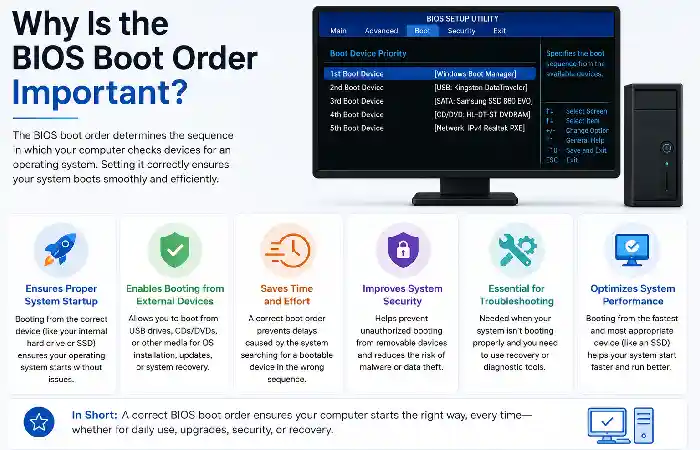
Startup Order Control: Defines which device the computer needs to use to find the operating system first.
Installation of Operating Systems: Enables you to boot from a USB or DVD while installing Windows or other operating systems.
Troubleshooting Process Support: It is important to boot up the computer from the external device to launch troubleshooting tools.
Solving Boot Issues: You can change the boot order in case the computer does not identify the boot device.
Common Boot Devices in BIOS
The boot devices in BIOS are the hardware or media used by the computer to find and load the operating system. They vary depending on the hardware configuration of the computer.
Hard Disk Drive (HDD): This holds the operating system and users’ files.
Solid State Drive (SSD): It is a high-performance drive that runs the operating system.
USB Drive: This is used to boot from a bootable USB drive.
CD/DVD Drive: This drives the computer from the optical disc.
Network Boot (PXE): Boots the computer from the operating system or image available on the network.
UEFI Boot Manager: Chooses the operating system from the UEFI boot menu of the computer system firmware.
How to Change the BIOS Boot Order
Resume your computer and enter BIOS/UEFI by pressing a button, such as F2, Delete, F10, or Esc.
Click on Boot, Boot Order, or Boot Importance.
Select the option you want to alter, which is your SSD, hard disk, or USB.
Move the drive in question higher or lower in the boot order by clicking on the arrows shown on the screen.
Put the drive you want to boot from first in the boot order.
Save your locations by pressing Save & Exit or something else.
Resume your computer and make sure that your computer boots from the right drive.
How to Fix Incorrect BIOS Boot Order
A wrong BIOS boot order makes your computer fail to load the correct operating system and shows an error message “No Bootable Device”. It can be fixed by entering BIOS/UEFI and moving the correct system drive or boot manager first in the boot order list.
| Problem | Solution |
| Computer boots from the incorrect drive | Change the correct HDD or SSD to the top of the boot order. |
| USB drive is booting first | Remove the USB drive or move the internal system drive above it. |
| “No Bootable Device” error | Check that the correct storage drive is detected in the BIOS and set as the primary boot device. |
| Windows Boot Manager is missing. | Check the UEFI boot settings and select Windows Boot Manager if available. |
| Boot order keeps changing. | Check the BIOS settings, save changes correctly, and consider replacing the CMOS battery if settings are repeatedly reset. |
| Operating system still will not boot | Use a recovery or installation drive to repair the system’s boot files. |
How to Save and Exit After Changing Boot Order
After making changes to the boot order via the BIOS setting, it is essential to save the setting so that your changes are not in vain and your computer defaults to the old boot order.
Select Save & Exit
Go for the Save & Exit function in the BIOS/UEFI menu. This way, you can save all the changes you have made to the boot order.
Shortcut Function
In most cases, the BIOS request offers a shortcut to save and exit the BIOS, such as F10. It is essential to look for the console cutoff function to perform the act in the BIOS menu.
Confirm the Actions
If asked, confirm your actions and select Yes or Save Changes and Exit.
Restart the Computer
Exiting from the BIOS will cause your computer to restart from the first bootable device in your boot order list.
Common BIOS Boot Order Problems and Solutions
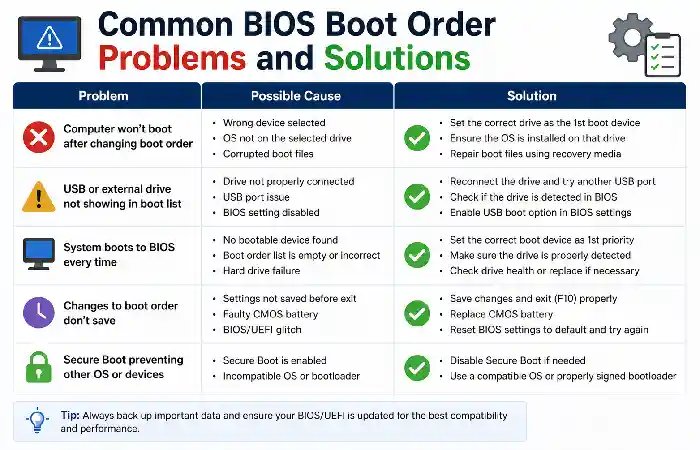
BIOS boot order problems often result in the inability of a computer to boot in the normal way or even boot from the wrong device.
| Common Problem | Possible Solution |
| CPU boots from the wrong device | Expose BIOS/UEFI settings and move the precise system drive to the top of the boot order. |
| USB drive twitches instead of the operating system | Remove the bootable USB drive or move the internal SSD/HDD higher in the boot list. |
| “No Bootable Device” message | Check whether the system drive is detected in the BIOS and verify that it contains a bootable operating system. |
| Windows Boot Manager is not designated. | Select Windows Boot Manager as the primary boot option on compatible UEFI systems. |
| BIOS does not detect the SSD or HDD | Check power and data connections, then verify the drive is recognized in BIOS/UEFI. |
| Boot locations reset after restarting. | Save BIOS changes correctly and check the CMOS battery if settings last after reset. |
| Computer cannot boot after altering settings. | Reinstate the previous boot order or load the BIOS/UEFI default settings and try again. |
What Happens When the Wrong Boot Device Is Selected?
When a wrong boot device has been selected, it will try to initiate the boot process from the boot device that does not have any operating system at all.
Common Problems
No Bootable Device: The operating system cannot be located on the device.
Boot Error Message: Some errors may appear, such as “Operating System Not Found” or “No Bootable Device.”
Booting from USB: The computer will boot up the installation or recovery environment instead of the OS.
Boot Loop: The OS continually reboots itself because it cannot find the proper boot files.
Fix: Enter the BIOS/UEFI and change the boot priority of the proper SSD, HDD, or Windows Boot Manager.
FAQs
What is BIOS boot order?
It is the order in which the computer uses the device when looking for the presence of an operating system.
How to change BIOS boot order?
Enter BIOS/UEFI settings and go to the Boot menu; select the appropriate device as the first one in the list.
What is the first boot order device?
Your system drive, which contains the installed operating system (SSD or Windows Boot Manager).
Why can’t I boot my computer after changing the boot order?
The selected drive doesn’t have a boot loader; thus, you should revert the boot order and set the right system drive.
Can I use the USB stick for booting my PC?
Yes, you can place the USB stick above the system drive in the boot order.
Conclusion
It is crucial to have clear knowledge of the BIOS boot order because it helps to manage the way the computer boots up, and in case of any boot issue, it provides a solution to it. It enables the user to check and make sure that the right boot drive, such as an SSD, HDD, USB stick, etc., is used to boot up the computer.